

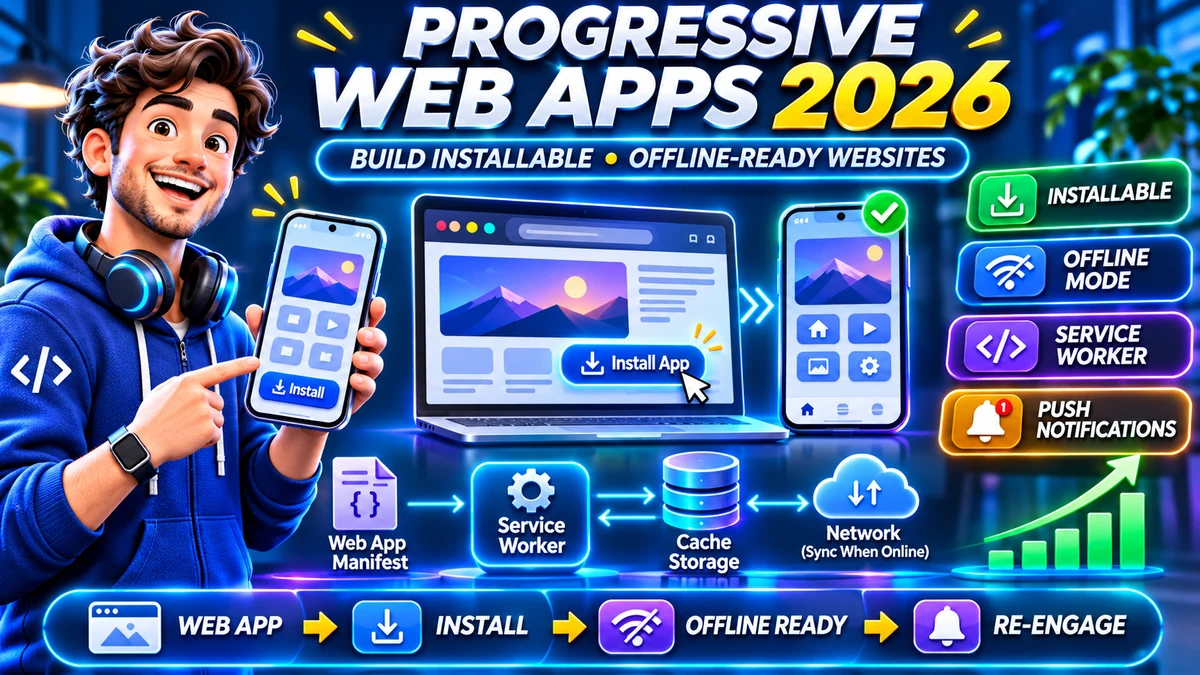
People expect websites to work across phones, tablets and desktops, but they also expect the convenience of apps: quick access, useful offline states and timely updates. Progressive Web Apps (PWAs) bring these ideas together using standard web technologies. A well-planned PWA can be installed from a supported browser, keep selected content available when connectivity drops and offer app-like navigation without forcing every visitor to download a native application.
This 2026 guide explains how PWA architecture works, what the web app manifest and service worker actually do, how to design caching and background synchronization, and how to test a reliable experience across devices. It also covers the limits: browser support varies, offline behaviour must be engineered, and a PWA is not an automatic SEO or performance shortcut.
Start with a responsive website that works without installation. Add a linked web app manifest for app identity and launch behaviour, then use a service worker when you have a real need for offline caching or supported background features. Choose explicit cache rules, protect private data, make synchronization safe, ask for notification permission only in context, and test installation and offline journeys on the browsers and devices your audience uses.
Four building blocks, one connected experience
Each part has a distinct responsibility. The server remains the source of truth for accounts and transactions.
1. What is a Progressive Web App (PWA)?
A Progressive Web App is a website built with web technologies and enhanced with capabilities that make it feel more like an application installed on a phone or computer. Depending on the browser and operating system, a PWA can be added to the home screen or app launcher, open in a standalone window, cache selected resources for offline use, and receive notifications when the user has granted permission. It is still a web application: people can discover it through a URL, open it in a browser and use it without first visiting an app store.
The phrase progressive is important. A well-designed PWA does not make its core experience depend on one browser feature. It starts as a useful website and adds installability, offline behaviour and other enhancements when the platform supports them. A visitor using a browser without a particular capability should still be able to read content, browse products or complete the main task wherever possible. This approach is more resilient than building an app that works only after installation.
A PWA is not defined by a single JavaScript framework or a visual style. It is an architectural approach that combines a responsive web experience, a web app manifest, service-worker capabilities where useful, secure delivery and thoughtful interaction design. The right feature set depends on what users need. A news reader may benefit from saved articles; a field-service tool may need offline forms; an ecommerce store may prioritize installability and a reliable basket.
2. Why businesses are considering PWAs in 2026
Businesses often want the reach of the web and some of the convenience associated with installed apps. A PWA can provide one main web codebase that works across a range of devices, while allowing supported browsers to offer installation. This can reduce the need to maintain completely separate front ends for every platform, although complex products may still need native applications for capabilities or distribution requirements that the web cannot meet.
The strongest business case is not simply that a PWA is fashionable. It is that a specific customer journey becomes more reliable or convenient. A customer might reopen a store from a home-screen icon, review previously loaded information during a poor connection, or receive a useful order update after opting in to notifications. A staff member may capture inspection notes in a warehouse with unreliable connectivity and synchronize them when the network returns.
PWAs also create trade-offs. Offline storage requires careful data handling, service workers introduce another lifecycle to maintain, and installation prompts vary across browsers. Push notifications can damage trust when used excessively. A business should identify the user problem, estimate the operational cost and measure whether the PWA features improve task completion, retention or service continuity. If the ordinary responsive website already meets user needs, adding PWA complexity may not be justified.
3. Core PWA capabilities: installability, offline use and engagement
Installability lets a supported browser offer the user a way to add the web app to a device. Once installed, it may appear with an icon and launch in a more app-like window. The exact installation interface and eligibility rules differ by browser and operating system. A web app manifest describes the app's name, icons, launch URL and preferred display behaviour, but a manifest alone does not create a complete application experience.
Offline support is another common capability, but it is not automatic. Developers choose which pages and assets to cache, how long data remains available and what happens when a request cannot be completed. A good offline experience communicates the connection state and preserves useful actions where it is safe to do so. It should never pretend that an online transaction, payment or stock check succeeded when the server did not confirm it.
Notifications and background capabilities can help an app remain useful beyond an open browser tab, but support and restrictions vary. Push notifications require a permission decision and a service that sends messages. Background synchronization can defer selected work until connectivity returns in browsers that support it. These features should solve a clear user need, use clear permission explanations and include sensible controls to pause or disable them.
4. How a PWA works: the main app, manifest and service worker
A practical PWA architecture has several cooperating pieces. The web application itself contains the interface, content, routes and business logic. The web app manifest describes how the application should be presented when installed. A service worker, when implemented, runs separately from the page and can intercept eligible network requests, manage caches and handle supported background events. The server remains responsible for authoritative data, authentication, transactions and business rules.
The browser loads the page and may register a service worker. The browser then downloads and installs the worker script, activates it according to its lifecycle and gives it control of pages within its scope. The worker can respond to fetch events with cached resources, network responses or a deliberate fallback. It does not run continuously like a permanently active server process; browsers can stop an idle worker and start it again when an eligible event occurs.
Keep the responsibilities separate. The page should render the interface and respond to user actions. The service worker should coordinate network and cache behaviour rather than become a second application containing all business logic. The server should validate sensitive operations and remain the source of truth. This separation makes the system easier to debug, update and secure.
5. Create a web app manifest that describes the application
The web app manifest is a JSON file linked from the document head with a link element whose rel value is manifest. It provides metadata such as name, short_name, start_url, scope, display, theme_color, background_color and icons. The name is the longer identity shown in installation surfaces; short_name is a compact alternative for constrained spaces. The start_url identifies the initial route, while scope defines which navigations belong to the installed experience.
Use icons that are designed for different launcher contexts. Common manifest setups provide suitable 192-pixel and 512-pixel icons, and may include purpose values such as any or maskable where appropriate. A maskable icon is designed so the operating system can crop it into different shapes without cutting off the important logo. Test icons on actual devices instead of assuming that a square source image will look correct in every launcher.
Manifest requirements and installation promotion differ across browsers. Chromium-based browsers document a set of manifest members and secure-context requirements, while other platforms may offer a different add-to-home-screen experience. HTTPS is the normal production requirement for service workers and installable experiences; localhost is commonly treated as secure for development. Check current browser documentation before promising a particular install prompt or display mode.
6. How website installation works across devices
Installation is controlled by the browser and operating system, not by a universal website button. On supported Chromium browsers, an install affordance may appear in browser UI or a site may respond to an installation event where that API is available. Other browsers may use a menu item or a share-sheet workflow. On Apple platforms, the user experience and available web-app features differ from Chromium, so instructions should be written for the devices your audience actually uses.
Do not make installation a mandatory gate before visitors can use the website. A PWA should remain a normal website when it is not installed. If you offer an install button, explain the benefit in plain language and show it only when the browser provides a valid installation path. Avoid repeatedly interrupting visitors with a full-screen prompt before they understand the product. A contextual prompt after a useful action is usually more respectful.
Test the installed version separately from the browser tab. Check the icon, app name, launch URL, display mode, navigation behaviour, orientation handling and return path from external links. Confirm that login, payments, deep links and account recovery continue to work. Installation can change how browser controls appear, so provide an obvious in-app navigation pattern and a reliable route back to the website's main sections.
7. Service workers: the engine behind offline functionality
A service worker is a script registered by a page and installed by the browser. It runs in its own worker context and can listen for lifecycle events such as install and activate, as well as fetch and supported background events. Its most familiar role is to act as a programmable network layer: when a controlled page requests a resource, the service worker can decide whether to return a cached response, contact the network or provide a fallback.
Service workers have a lifecycle that developers must respect. A new worker may install while an older worker still controls open pages. Activation is the point where the new worker can take over according to the update strategy. Aggressive skip-waiting behaviour can cause old pages to run against new cached assets, so updates should be tested carefully. Use versioned cache names and remove obsolete caches during activation after confirming the new version is ready.
A service worker is not a replacement for server-side security, and it should not be trusted to authorize access to private data. Anyone who can inspect a device may be able to inspect data stored by the browser. Cache public assets and carefully selected user data, avoid caching sensitive responses by default, and clear user-specific storage on logout where appropriate. The server must still verify every protected request.
8. Design an offline caching strategy that fits the content
Offline support begins with a decision about what should remain available without a network. Static assets such as a logo, stylesheet, app shell and essential fonts are often good candidates for precaching. Frequently visited public pages may be cached at runtime. User-generated drafts may need a local database and a synchronization queue. Live inventory, payment status and account balances generally need an online confirmation before the interface presents them as current.
Cache-first is useful for versioned static resources that change infrequently. The service worker checks the cache and returns a match before reaching the network. Network-first is useful when freshness matters: try the network, update the cache when a valid response arrives, and fall back to a previous response when appropriate. Stale-while-revalidate can return a cached response quickly while fetching an update in the background. These are patterns, not universal rules; choose per resource.
Set clear expiration and invalidation policies. A cache that never expires can show old product prices, outdated event details or a previous app version. A cache that is cleared too aggressively offers little offline value. Track cache size, handle quota failures and avoid storing huge media files without a product reason. Provide a visible offline state and distinguish content that is saved locally from content that still requires a live server connection.
Choose a strategy for the resource
Select the content type to see a sensible starting pattern. This is a planning aid, not a universal rule.
9. Build an offline experience users can understand
An offline page should do more than say that the internet is unavailable. It should explain what remains possible and what requires reconnection. A reading app might display saved articles and a retry control. A field form might allow a draft to be saved locally and show a pending-sync state. A booking interface should explain that availability cannot be confirmed until the server responds. Honest feedback prevents users from mistaking a local action for a completed transaction.
Design the interface for transitions between online, slow and offline states. A connection can disappear after the page loads, return while a user is editing, or fluctuate during a file upload. Show whether information is saved on the device, waiting to sync, synchronized or in conflict. Avoid relying only on a small colour change; use text and clear status indicators so the state is understandable to more people.
Plan for the first visit. A service worker generally cannot provide cached resources before it has been installed and had an opportunity to cache them. The first page load therefore still depends on the network. Tell users what is available offline after initial use, and do not promise full offline operation if only a small shell or a few assets are stored.
10. Background sync and queued actions
Background synchronization can help defer work until a network connection becomes available again, where the browser supports the relevant API. A common example is a user submitting a message while offline: the app stores a pending action locally, then retries when connectivity returns. The user should see that the item is queued rather than being told that the server has already accepted it.
Build synchronization around idempotent operations and unique request identifiers. If a request is retried after a timeout, the server may have processed the first attempt even though the browser never received the response. Without idempotency, a retry can create duplicate orders, payments or form submissions. For sensitive actions, use server-side idempotency keys and explicit confirmation rather than relying on a client-side queue alone.
Conflicts also need a policy. A record may have changed on the server while the device was offline. Decide whether to merge, ask the user to resolve the conflict, keep a draft copy or reject the stale update. Record timestamps and version identifiers where appropriate. Background sync support varies, so provide a manual retry path and do not make the app's core task impossible in browsers that lack the feature.
11. Push notifications: useful reminders without annoying users
Web push allows a server to send a message through a push service to a browser subscription, which can wake a service worker and display a notification when the platform supports it. The Push API and Notifications API work together, but the exact experience differs by browser and operating system. The user must grant permission, and the application needs a clear way to manage subscriptions and notification preferences.
Ask for permission only after explaining the value. A visitor who has just arrived at a homepage has little reason to trust a request for notifications. A customer who has chosen to follow a delivery, receive a price alert or get a reminder may understand the benefit. Use a contextual opt-in, describe the message categories and make it easy to change preferences later. Never treat notification permission as a condition for reading public content.
Notification quality matters more than volume. Send messages that are timely, specific and connected to an action the user requested. Avoid vague promotional blasts, repeated reminders and misleading urgency. Respect quiet hours where possible, provide a clear destination when a notification is opened and handle expired subscriptions. Measure opt-in rate alongside notification dismissals, unsubscribes and downstream task completion.
12. Choose the right browser storage for PWA data
PWAs can use several browser storage technologies, each with different strengths. Cache Storage is designed for request and response pairs, making it suitable for cached pages and assets. IndexedDB stores structured data and can support offline drafts, records and synchronization queues. localStorage is synchronous and best kept for small, simple preferences rather than large datasets or complex offline records. The right choice depends on the shape and lifecycle of the information.
Storage is not guaranteed to be permanent. Browsers manage quotas and may evict data under storage pressure or user settings. An application should handle failed writes, quota errors and missing cached records gracefully. Where supported and justified, the Storage API can help understand persistence status, but it does not remove the need for backup and synchronization strategies for important user-created data.
Treat local browser storage as untrusted and potentially accessible to someone with access to the device or browser profile. Do not store passwords, payment card data or long-lived secrets in plain client storage. Minimize personal information, apply retention rules and clear user-specific data on logout. Encrypting data in the browser does not automatically solve the problem if the decryption key is available to the same client.
13. Security and privacy considerations for PWA development
Use HTTPS across the entire production site. Service workers require a secure context, and secure transport protects users from network interception and content modification. Keep the service worker script under a deliberate scope, restrict cross-origin requests according to the application's needs and avoid broad caching rules that might store private responses. A service worker can influence many requests, so a small routing mistake can have a wide impact.
Protect authentication and sensitive operations on the server. A cached page is not proof that the user is still authorized, and a hidden button is not an access-control mechanism. Revalidate sessions and permissions for protected API calls. Be careful with shared devices: account-specific pages, cached API responses and locally stored drafts should not be exposed to the next person who opens the browser.
Privacy also applies to notifications and analytics. Explain what data is collected, why it is needed and how long it is retained. Request notification permission only when it is relevant, and make unsubscribe controls straightforward. Avoid collecting precise location, contact data or background information unless the product genuinely needs it and the user understands the purpose. Follow the laws and platform policies that apply to your audience.
14. PWA development and SEO: keep the website discoverable
A PWA remains a website and should retain normal search fundamentals. Public content needs stable URLs, descriptive page titles, useful text, crawlable internal links, appropriate canonical tags and a sitemap where relevant. Do not hide important pages behind an installation prompt or make every route depend on a click event that has no real link. Search engines index URLs and page content; the app manifest is primarily for installation and presentation, not a substitute for page metadata.
Client-side routing should use real URLs and support direct navigation. A visitor or crawler should be able to request a category, article or product URL directly and receive the correct page. Use ordinary anchor elements with href values for navigation. Avoid using URL fragments as the only mechanism for changing indexable content. Provide meaningful server responses for missing pages rather than returning the same successful app shell for every unknown path.
Offline fallbacks must not accidentally replace normal server responses for crawlers or visitors requesting a page for the first time. Keep the server responsible for status codes and canonical content. Test the raw HTML and rendered page for important routes, and ensure that cached content does not cause stale titles or outdated product information to persist. PWA features should enhance a crawlable website rather than conceal its content.
15. Make the installed experience accessible and responsive
An installed app should remain usable with keyboard navigation, screen readers, zoom, high contrast settings and different input methods. Use semantic HTML, visible focus indicators, correctly labelled controls and accessible form validation. Installation does not remove the need to meet accessibility expectations. A custom offline page, notification preferences screen and update prompt should all be designed with the same care as the main website.
Responsive behaviour matters because the same PWA may run in a narrow phone window, a tablet, a desktop window or a resizable standalone app. Avoid assuming a fixed viewport or a single orientation. Make touch targets comfortable, preserve content when the window changes size and ensure that menus and dialogs can be operated with keyboard and touch. Test text scaling and platform safe areas where relevant.
Do not use notification banners, update prompts or offline messages that obscure the main task. Provide a clear close or defer action, communicate the purpose and return focus sensibly when a dialog closes. Motion should be subtle and respect reduced-motion preferences. A good PWA feels native enough to be familiar while retaining the clarity and accessibility of the open web.
16. Manage PWA updates without breaking active sessions
Service workers can keep an older version of the application available while a new version is downloaded. This is useful for reliability, but it means developers must plan how code and cached assets stay compatible. If a new HTML file expects a JavaScript bundle that has not been activated yet, a user can encounter missing resources. Version caches deliberately, deploy assets with stable names or content hashes, and retain old assets long enough for active pages to finish using them.
An update notification should explain what is changing and offer a sensible action. For a simple content site, activating an update on the next visit may be acceptable. For a form or transaction workflow, forcing a reload while a user is entering information can cause data loss. Save drafts, warn before refreshing and coordinate updates around safe points in the user journey.
Test rollback and recovery. A faulty worker can cache a broken response and keep serving it after the server has been fixed. Provide a strategy to remove obsolete caches, recover from failed precaching and publish a corrected worker. Monitor service-worker installation errors and failed asset requests after deployment. Treat the worker as production code with the same review and release discipline as the rest of the application.
17. How to test a PWA before launch
Test the application as a website first. Open every important route directly, refresh nested paths, navigate with browser controls and confirm that the core journey works without installation. Then test the PWA layer: manifest parsing, icons, install flow, standalone launch, service-worker registration, cache population, offline fallbacks and update behaviour. Use more than one browser and operating system because installation and background capabilities are not identical everywhere.
Simulate network conditions rather than relying on a single successful Wi-Fi session. Test a first visit, a repeat visit, a slow connection, a connection that drops mid-task and a device that returns online. Clear site data between runs to test the first-install experience. Check what happens when the cache is empty, storage is full, an API returns an error or a cached record has expired. Include real-device testing for touch, notifications and home-screen behaviour.
Use browser developer tools and Lighthouse as part of the process, but do not treat a single audit score as a launch certificate. Inspect service-worker lifecycle events, cache entries, failed requests and console errors. Test accessibility with keyboard and assistive technology, and verify that privacy controls and notification preferences work. Record test cases and repeat them after significant changes to routing, caching or authentication.
18. Measure whether PWA features improve the product
Choose metrics that correspond to the problem the PWA is meant to solve. For installability, measure installation prompt exposure, acceptance and subsequent active use rather than counting every prompt as success. For offline workflows, measure successful draft preservation, queued actions, synchronization completion and conflict rates. For notifications, track opt-in, delivery, meaningful engagement and unsubscribe rates. For ecommerce, connect these measures to completed purchases and customer support outcomes.
Compare cohorts carefully. People who install a PWA may already be more engaged than people who do not, so a simple comparison between installers and non-installers does not prove that installation caused higher retention. Where practical, use controlled experiments, phased rollouts or before-and-after analysis with clear limitations. Keep privacy and consent requirements in mind when collecting analytics.
Watch for negative signals as well. A high number of notification opt-outs may indicate poor targeting. A high offline queue failure rate may mean the app promises more than it can deliver. Repeated cache misses or stale data reports may point to an incorrect strategy. A PWA should be judged by whether it makes important user tasks more dependable, not by the number of browser APIs it uses.
19. Which businesses benefit most from a PWA?
Retail and ecommerce businesses may benefit when customers revisit products, save a basket, browse selected content in weak network conditions or receive requested order updates. The offline experience should be honest: a cached product page can be useful, but current stock, shipping estimates and payment confirmation still require authoritative server data. A PWA can improve convenience without pretending that a disconnected device can complete every transaction.
Publishers, education platforms and knowledge libraries may use caching to make previously opened articles or lessons available offline. A field-service company may build a PWA for checklists, inspection notes and photos captured in areas with inconsistent connectivity. Event organizers may provide schedules, venue maps and saved tickets, while ensuring that any entry validation or last-minute changes are synchronized with the event system.
Not every business needs a PWA. A brochure website with a few pages and little repeat usage may gain little from a complex offline layer. A product that depends heavily on specialized device hardware, advanced background processing or platform-specific integrations may still need a native application. Start with user research and a clear use case, then choose the lightest architecture that solves it.
20. A practical 90-day PWA development roadmap
Days 1–15: define the user problem and map the journeys that matter. Identify whether installation, offline reading, offline data entry or notifications would genuinely help. Audit the existing responsive website, browser support requirements, authentication model and content architecture. Choose a small pilot rather than converting every route at once. Define success metrics before implementation.
Days 16–30: build the foundation. Serve the site over HTTPS, create and link the web app manifest, prepare correctly sized icons and define the start URL, scope and display mode. Confirm direct URL navigation and responsive layouts. Add a service worker only when there is a clear caching or background requirement. Document which resources and data may be stored locally.
Days 31–60: implement the first useful capability. This may be a custom offline fallback, saved content, a draft queue or an install experience. Define cache versioning, expiry, update behaviour and failure states. Keep sensitive data out of generic caches and ensure server-side authorization remains authoritative. Test first visit, repeat visit, offline use and reconnection.
Days 61–90: validate across target browsers and devices, review accessibility, test update recovery and measure the pilot. Gather feedback from real users and inspect whether the feature improves task completion or retention. Fix the most common failure cases before expanding the rollout. A measured, reliable PWA is more valuable than a large feature list that the team cannot maintain.
Build in stages, validate at every release
21. Common PWA development mistakes to avoid
One common mistake is treating the manifest as the whole PWA. The manifest describes installation and presentation; it does not create offline functionality, synchronize data or guarantee that a browser will display an install prompt. Another mistake is assuming that adding a service worker automatically makes a site faster or offline-ready. The worker needs an intentional caching strategy, and a poor strategy can serve stale or broken content.
Developers also make the offline experience too ambitious. Caching every API response can expose private information, consume storage and display outdated data. Queueing every action can create duplicate submissions or conflicts. Notifications sent without context can cause users to revoke permission. These are product and data-design problems, not just code defects.
Finally, teams sometimes test only on the developer's own device. Browser support, installation surfaces, background behaviour and notification controls vary. Test the browsers your customers use, include a first-visit scenario and verify what happens when features are unavailable. Progressive enhancement means the basic website remains useful even when an advanced capability cannot be used.
22. PWA launch checklist for developers and business owners
Before launch, confirm that the website works as a normal responsive site and that all key routes can be opened directly. Verify HTTPS, manifest linking, valid app identity, appropriate icons, start URL, scope and display settings. Check the browser and operating-system support matrix for the features you plan to advertise. Do not assume every platform provides the same install prompt or background capability.
Review the service worker's scope, lifecycle, cache names, update process and fallback behaviour. Decide which resources can be cached, which data must remain online and how stale information is identified. Confirm that logout clears user-specific data, protected APIs validate access on the server and local storage does not contain unnecessary secrets. Test offline transitions and reconnection with realistic user journeys.
Finally, verify notification permission flows, accessible controls, privacy notices, analytics events and rollback procedures. Check the installed app on real devices and test the next deployment while an older version is still open. Assign an owner for service-worker updates and cache incidents. A PWA is a continuing product capability, so it needs maintenance after the initial release.
23. Frequently asked questions about Progressive Web Apps
What is the difference between a PWA and a normal website? A PWA is still a website, but it can add capabilities such as installation, offline behaviour and notifications when supported and deliberately implemented. A normal website can also be responsive and feature-rich without being installable.
Does every PWA work offline? No. Offline behaviour must be designed. Developers need to select resources or data to cache, define fallback screens and decide how queued actions are synchronized. A first visit generally still needs a network connection to download the app and its initial resources.
Do PWAs need a service worker to be installable? Requirements differ by browser and platform. A web app manifest is central to many installation experiences, while service workers are commonly used for offline and background features. Check current browser-specific criteria rather than relying on an old universal rule.
Can a PWA send push notifications? Supported browsers and platforms can provide web push, but users must grant permission and the application needs a push subscription and server-side sending infrastructure. Availability and behaviour vary, so always provide a useful experience without notifications.
Are PWAs better than native apps? Neither is always better. PWAs offer web reach and a shared web technology base. Native apps may provide deeper platform integration, store distribution or capabilities that are not available to the web. Choose based on user needs, required features, team capacity and distribution strategy.
Does building a PWA improve Google rankings? There is no automatic ranking boost for adding a manifest or service worker. A PWA should retain crawlable URLs, useful page content, metadata and sound technical SEO. Better reliability can support user experience, but search visibility still depends on many factors.
Official PWA resources worth bookmarking
Browser capabilities and requirements evolve. Use primary documentation when implementing a feature or checking support.
External resources are independent documentation. TopRank Solution is not affiliated with or endorsed by the linked organizations.
Turn your website into a stronger digital experience
Explore TopRank Solution's website development and digital growth services. Review the available scope and deliverables to find the right next step for your business.
Explore website development servicesSee available services and package details PWA features require implementation and browser support. No install, retention or business outcome is guaranteed.Conclusion: build a PWA around a real user need
A Progressive Web App can make a website more convenient by adding installation, offline access and selected background capabilities. The best results come from choosing a specific user problem and implementing only the capabilities that solve it. A manifest can describe the installed experience, a service worker can manage selected requests and caches, and the server remains responsible for authoritative data and protected operations.
Start with a dependable website, add one meaningful PWA capability, test it across the devices your audience uses and measure whether it improves the task. Keep offline states honest, protect locally stored data, treat notifications as a user choice and plan for service-worker updates. That is how a PWA becomes a maintainable product improvement rather than another layer of technical complexity.